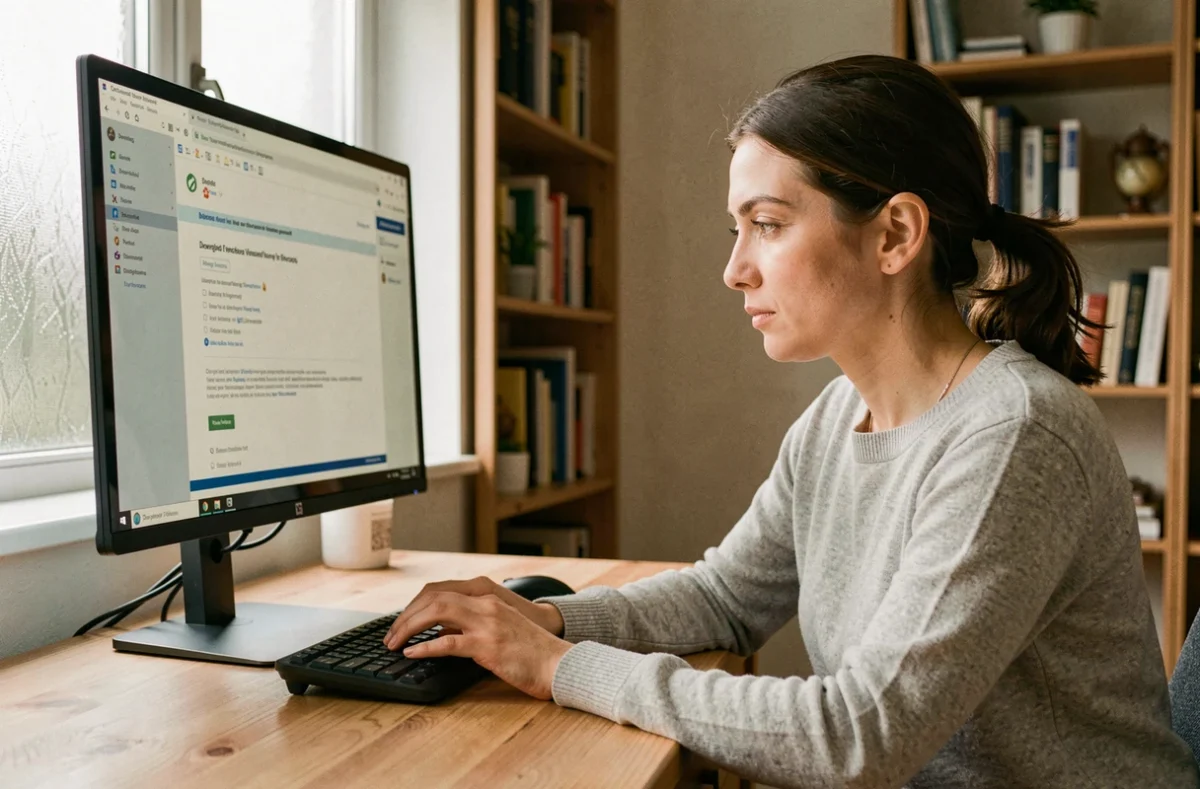
We’ve just picked up a new PC at the office, we need a photo-editing tool or a compression utility, and our first instinct is to type the software’s name into a search engine. The top link isn’t always the publisher’s website.
Sometimes it’s an almost perfect copy of the official site, hosted on a domain registered the day before, distributing a modified installer containing malware. Downloading and installing software safely starts with this first step: check the address before you click.
Check the file’s source before downloading
Here’s a classic scenario: you search for “VLC download” and click the first sponsored result. The site looks genuine, the download button is identical, but the URL doesn’t match the software publisher’s official domain. This type of trap relies on similar-looking domain names (an extra letter, an added hyphen, or a different extension).
Before starting a download, check two things. First, make sure the URL in the address bar matches the software publisher’s official website. Then, check that the connection is encrypted (look for the padlock in your browser). A site without HTTPS offering an executable download is a clear warning sign.
Trusted distribution platforms (the Microsoft Store, the publisher’s website, and repositories such as GitHub for open-source projects) remain the most reliable sources. As the Information Influx website explains, cross-checking the download source against the publisher’s official website is a simple habit that helps avoid most tampered installers.
One detail often goes unnoticed: sponsored search results aren’t subject to the same filters as organic results. Prioritizing organic results reduces the risk of landing on a fake website.

Downloaded the file? Checks to make before installing
Once the file is on your drive, don’t double-click it right away. The first useful check is to verify the file’s fingerprint (SHA-256 hash). Many publishers provide this fingerprint on their download page. Compare it with the fingerprint of the downloaded file using a utility built into your system (certutil on Windows, shasum on macOS or Linux). If the two fingerprints don’t match, the file has been modified in transit.
The second check is the installer’s digital signature. On Windows, right-click the .exe file, select “Properties,” then open the “Digital Signatures” tab to see whether the publisher has signed the program. An unsigned installer from a commercial publisher is suspicious.
Scan the file with antivirus software before running it
Even if you have antivirus software running in the background, manually scanning the downloaded file before opening it adds another layer of protection. Some antivirus programs only intercept threats when they’re run, not when they’re downloaded. A manual scan forces a full inspection of the file while it’s at rest.
For suspicious files, online services such as VirusTotal let you submit a file and scan it with dozens of antivirus engines at once. Delete any file flagged by multiple engines without hesitation.
Free software and unwanted programs: read every installation screen
Free software funded by advertising often bundles additional programs into its installer. Sometimes called “bundleware,” these include browser toolbars, system optimization utilities, or changes to your default search engine. These additions aren’t strictly viruses, but they can slow down your system and collect browsing data.
The trap lies in installation screens that most users approve by clicking “Next” without reading. The “recommended installation” or “express installation” option almost always includes these extra components. Here are some habits to follow every time you install software:
- Always choose the “custom” or “advanced” installation option, even for trusted software, so you can see the full list of proposed components
- Uncheck any preselected boxes for third-party programs, changes to your browser’s home page, or a publisher’s “partner” offers
- Read every installation screen all the way through before clicking “Next,” including the fine print at the bottom of the window
- If a program requires a third-party component and won’t let you decline, consider an open-source alternative that doesn’t impose anything

Security updates: installing software is never the end of the story
Installing software and getting it working doesn’t mean the job is done. Security vulnerabilities can emerge after a version is released, and fixes arrive in the form of updates. Outdated software becomes a gateway for attacks, even if it was originally downloaded from a trusted source.
The European Cyber Resilience Act, which entered into force in December 2024, will gradually require software publishers to manage vulnerabilities and provide security updates throughout a product’s lifetime. The main obligations will apply from December 11, 2027, with an interim deadline of September 11, 2026, for reporting actively exploited vulnerabilities.
Choose software that’s still actively maintained
Before installing a program, check the date of its latest update on the publisher’s website or code repository. Software whose latest version dates back several years, with no mention of security fixes, poses a real problem: vulnerabilities discovered since then will never be patched.
For the operating system itself, enabling automatic updates remains the most reliable way to patch vulnerabilities in the system and its built-in components (browser, PDF reader, Java or .NET runtime). Some third-party programs have their own automatic update mechanism. If they don’t, a monthly manual check is enough in most cases.
Ultimately, downloading and installing software safely comes down to a few simple, verifiable steps: check the source, inspect the file, read the installation screens, and keep the software up to date. Each takes just a few seconds, but these habits can save you hours of cleanup after an infection.